Windows 7 is a massive enhancement over Windows Vista
and Windows XP. There are so many new features and services provided to the common user as well as the power user that most of us are running out of reasons for why we do not have Windows 7. One of the most visible changes that are present in Windows 7 is the Windows 7 themes. In Windows XP, one had to tweak the files in order to install Windows XP Themes. Of course, there used to be free themes available for Windows XP themes via Microsoft, but their release were awry once in a blue moon.
Microsoft seems to have decided to get it right with Windows 7 even before they launched the beta version of Windows. There are a number of inbuilt Windows 7 themes, complete with backgrounds, music and voice files, which one can access by rightclicking their desktop
and selecting Personalize. The user is immediately taken to the various themes that are installed on their machine, which are differentiated into Aero Themes, High Contrast Themes and My Themes, which are basically the themes that the user has downloaded and installed via the Internet.
Aero themes are the themes which make use of the Aero technology, which basically spruces up the Window Graphical user experience, and I would seriously recommend you to use Aero if you have the graphical prowess to run Windows 7 with Aero.
Apart from the preinstalled Windows 7 themes, you can get several Windows themes from the Windows site itself. Windows offers themes like Coca Cola Windows 7 theme, Ducati Windows 7 Theme, Ferrari Windows 7 theme, etc. All you have to do is to download these themes, which are available in a self executable format, which means that you just need to click on the file and the theme is installed into your themes folder.
If you wish for more Windows 7 themes, you can always run a search in your favorite search engine and you will be introduced to the vast number of websites that offer Windows 7 themes. However, be careful while browsing through these sites, as some of them may not actually offer you free themes, but have some hidden costs that you will be informed about when you are just about to install the theme on your machine. Of course, there are several websites that genuinely offer free Windows 7 themes, and because Windows got the graphics part of their operating system right this time, these themes are a joy to install and use.
However, because Windows itself offers so many themes, you might not feel the need to search for any more themes on the Internet at all. Windows also offers region related themes like China Themes, America Theme, India theme, etc.
While downloading the free themes from the non Microsoft websites, make sure that you have a good antivirus installed, so that you are informed of any malicious software that may be installed along with the themes that are installed by the suspicious looking websites.
How to get Free Windows 7 Themes
Windows 7 Reviews - A Great Operating System
Windows 7 review is a must read subject to understand the best of it as Microsoft has always come with something astonishing as well as beneficial. There are various aspects to be considered as reviews such as:
Installation - Windows 7 is identical to the Windows Vistas and navigates through few questions about the place the user wants it installed and lets the grind out. It takes nearly 17 minutes to finish the question period to this impressive feat.
Desktop - The operating system retains glassy window style, and other holdovers that the users can notice immediately such that there is a change in the taskbar, as it is slightly taller now accommodating squared off icons. Every program that is open gets an icon, yet the user can pick favorites to suspend to the bottom, even if it is not in use such that it looks identical to the earlier Windows. However, this assists in reducing the visual untidiness coming from the program titles of the taskbar, and it also allows turning to the icon-based system by shrinking the taskbar to its original size.
New and improved taskbar - Microsoft has introduced new Aero Peek features for any necessary details to be filled, and hovering over an icon will result in showing separate thumbnails for every window within the program with labels above them. This takes the user one step ahead as it conceals other windows and shows only one question that the user is dealing with. Right-clicking on the taskbar icons facilitates in getting Jump Lists and these are shortcut lists relating to these programs.
Snap feature - The snap feature turned to be an unexpectedly smart addition to the Windows 7 as it facilitates grabbing any window and dragging it to the left or right edge such that it automatically resizes to half the screen. This makes browsing easy on two screens such that they can be compared at a stretch and typed in word next using a browser window, and so on. On completion of work, merely dragging the window to a position brings it to the old size, and these snapping options is akin to the freeware AllSnap offers.
Windows 7 new feature - The feature of Windows desktop allows working easier as the new personalization menu brings an array of built-in themes, besides switching them by screensavers, swapping backgrounds and determining its opacity using a slider. Hard drives, webcams and thumb drives will be detected automatically and the pane alongside will show connected items such as keyboards, mouse and Wi-Fi adapters.
Game Time - The real Microsoft test is when it wins over gamers, and is not disappointing as it has come with improved gaming performances. Running games such as MotoGP and Crysis on Windows 7 encounters no issues, and even with maxed settings everything goes smoothly without any hiccup.
Some Hiccups - The dazzling experience of Windows 7 is amazing, yet few zingers are that on changing themes, the taskbar icons stopped working until the windows were reopened. The pro includes painless installation, fast boot times, excellent gaming performance and clutter free taskbar, while the cons are that some users crave for more customization. Such minor inconveniences are feltPsychology Articles, but nothing significant is observed to diminish the experience of installing Windows 7.

Microsoft Disk Operating System
Microsoft operating system, which probably marks the rise of Microsoft. DOS is another operating system which has the basic feature of CUI (Character User Interface) mode. You require learning the commands. It was one of the most powerful computer operating systems of its time and Microsoft continuously improved this product, which led them to capture a significant market.
History of Computer Operating Systems - MSDOS
The original version of DOS, QDOS was purchased by Microsoft from Seattle Computer Products in 1981. Microsoft released much different type of versions of DOS and worked on the bugs present in those versions. By 1993, Microsoft had included the MOVE command, MSBACKUP and a simple anti-virus program and disk defragmenter. Microsoft kept on improving this product and by 1984, they had added support for high density floppy disks, 32 MB hard disks and networking. In 1994, Microsoft licensed a disk compression package called DriveSpace and included it in its DOS version. This version is also a part of the Windows 95 operating system.
Microsoft Windows
Windows operating system is the most widely used operating system in the world and it is a product from Microsoft. The latest new version is Windows 7. Microsoft Windows was an operating system that support for a variety of features before other operating systems had included them. Windows operating system captured wide range of software’s support in the large market .
History of Computer Operating Systems - Microsoft Windows
Microsoft announced the launch of Microsoft Windows, in November 10, 1983; it was an extension of the MS DOS operating system. This marked the beginning of the GUI era. This was very successful and they worked newer versions of Windows. After that Windows 95 was released in 1995. In 2000 saw the release of Windows ME after Windows 98 in 1998 and finally there was Windows XP, which was released in the year 2001. All these operating systems included a variety of features.. Finally Microsoft brought Windows 7 to the markets in March 2010. And this got most of the problems with Windows Vista, fixed.
Best Computer Operating Systems
Linux, Windows, Sun Solaris and Macintosh are some of the popular computer operating systems. But do you know who have designed their own operating system and use it on their local machines? So, what is all this fuss about computer operating systems and how to decide which one to use? Before we start taking about operating systems for computers, let us try to understand, what a computer operating system is.
A computer operating system is nothing but system software because of which the software and hardware in a computer can communicate with each other. In short, it is what takes life to a computer. Simply it is the computer operating system, on which you run all your applications. If you want to run certain software in your computer, it needs to be compatible with the operating system that is running in your computer. So much for the purpose of creating you aware of what is a computer operating system. Now that you have some good idea about what is a computer operating system, let us try to understand, how different types of operating systems can be used.
Types of Computer Operating System
Computer operating systems can be broadly classified into many categories. One thing kept in mind is that one particular operating system can fall into more than one category. The classification is based on the features that operating systems have.
Multithreading Operating Systems
These are the operating systems that allow to use different types of the same software to run at the same time. Operating systems like Windows XP, 9X, ME, Vista, windows 7 and Linux are examples of this type of operating system.
Multitasking Operating System
If your computer operating system allows you to run more than one application software at the same time, than it can be classified into Multitasking operating system. The same operating systems that have been mentioned above can be classified as examples of this type of operating system.
GUI Operating System
GUI means graphical user interface. This type of operating systems like Windows 98, XP, ME, Vista, 7 and Linux, which allow users to navigate graphic representation of every process or application are classified into this type of operating system.
CUI Operating System
This type of the computer operating systems, where you need to learn the commands for working with that particular operating system . MS DOS is one of the most used operating system. There is a particular command for each process and to bring in variation to the command, you have switches.
Multi-user Operating System
Multi-user operating systems which allow more than one user to log in to the computer system at the same time and use it; it can be classified as multi-user operating system. Linux is the most common example of this type of operating system, which allows six users to login at the same time and user used the this operating system very easily.
Know Minimum Hardware Requirement To Windows 7 Install
 Feature and usability
But it was hard to decide on the compatibility factor of both computers. I went through a lot of research regarding technical support on Google. I was very much messed up. Fortunately I came to know about Windows 7 Upgrade Advisor on Microsoft’s site. I downloaded the program and installed it over both the computers. Next, I connected the printer too with one of my PC. Afterwards I executed the program. This program took hardly 10 minutes to generate a report. I followed the report and did the important modification in the memory and processor part. I upgraded the RAM (Random Access Memory) to 2 GB and replaced the hard disk with a 20 GB HDD. Next I upgraded the processor with 1 gigahertz (GHz) 32-bit (x86) and the memory of graphic card to DirectX 9 graphics device with WDDM 1.0.
The term and condition was fulfilled for Windows 7 installation and I installed it with a USB flash drive. But post installation scenarios would not have been so smooth but for an authentic tech support from a remote service provider. I took remote technical support sessions of my computers to install the latest device driver and setup and configure my HomeGroup.
Now I can share the data over both my computers along with the printers. I don’t have to shuffle from one PC to another. With the inbuilt Parent Control feature of it, I can restrict my sensitive data from the reach of my kids.
Limitation
There can be certain limitation in the performance of your computer if your memory is not well compatible with the type of applications running in your PC. In addition you can’t expect complete Aero feature on your desktop’s if your graphic card is not compatible.
Dell Computer’s Performance with Authentic Tech Support
 Feature
Last week I decided to upgrade my laptop form Windows 7 Vista Pro to Windows 7 Professional, which I did with the help of an USB flash drive. I copied the installation image from MS site and installed it over my laptop. But I was facing issues regarding a valid product activation key. I ignored that and completed the task with a mindset of short-term usage. Next, I installed various device drivers and other important applications.
Next day, when I restarted my laptop to perform a printing task I got an error “Printer could not be found”. I did everything to the best of my knowledge, but all in vain.
I then navigated to the Google search and came across iYogi’s name. As soon as went deep and I completed the article, I was not able to stop myself and I called on the number. There was a good and interactive session with a Microsoft Certified technicians and he took the remote control over my laptop and accomplished the installation of operating system followed by configuration of my printer. Everything was done in a smart way to bring the printer in a smooth working condition.
It was a nice and innovative experience of a remote tech support. I have confirmed about the complete tech support services available for my Dell computer, which includes support for installation and upgrade of OS and other applications, driver update, setup and configuration of peripheral devices like printers and scanners and respective troubleshooting.
Usability
Hence, simplify your computing life by getting registered with a recognized tech support provider for your Dell computer. You can avail tech support service for your Dell computer anytime and from any location, because of its remote nature and 24/7 availability. You have the privilege of getting your Dell computer’s issue addressed with Microsoft certified technicians. Apart from diagnosing the particular issue they take adequate measures to enhance performance of your Dell computer by cleaning its memory and optimizing its registry.
Limitation
There are some tech support providers, which deliver on-site support services to resolve your Dell computer’s issues, but a risk factor is always associated with these types of services, because you are not aware about skill credential of the technicians and moreover they don’t offer you any service level guarantee.
So give preference to a remote support provider, where you can get support from experienced and Microsoft certified technicians only.
However, overall performance of your Dell computer is restricted by the hardware configuration too, so you can’t blame your operating system or the remote tech support provider every time.
Tech Support - Windows 7

Microsoft has pampered Windows 7 with performance accelerator features, which has raised its popularity amongst various segments of the users. . Each and every feature of this operating system is innovative and user-friendly.
Understanding the craze of people regarding latest operating system, MS has given streamlined method to upgrade or install it.
However due to some software and hardware conflicts, product activation and driver issue you may face some initial problems with it. But never mind because you are not alone at any point. Several leading tech support units are working to simplify your job. Some are offering onsite support while others are offering online support. But you should be little bit careful while choosing for the best Windows 7 tech support unit. I recommend online tech support, which has significant advantages over the other form of tech support.
Features
Online Windows 7 tech support unit has its own attributes; it is offering you a service, which you can access while sitting at your home or office. Next, its services are empowered with Microsoft certified technicians and are accompanied with a service level agreement, which is the most important thing due to overgrowing fraud practices. In addition, it offers a round the clock protection from any unfortunate computer crash or data loss. It also monitors your PC regularly to keep it free from any kind of Internet related threat, such as viruses, spyware and malware.
Usability
As per me, it is better to register with a recognized Windows 7 tech support provider for getting a smooth performance out of your computer throughout the time. I have got the extreme benefit with the remote tech support for my laptop. Now, when I am in any trouble I call it, irrespective of day or night. There are expert technicians to fix the issue in no time. I am getting regular PC health check up for my laptop, after which I am experiencing a considerable improvement in my laptop’s performance.
Limitation
The only problem, which I have faced though very occasionally, is waiting time on call. But it’s not a big issue, over and all it’s much convenient than waiting for days and weeks at any repair shop.
Get Windows 7 - Upgrading Your Current PC
It could be difficult for you to choose, whether migrate to Windows 7 or continue with existing operating system. And yet, as is often the case, the choice is not as easy as it looks because once you plan to switch to Windows 7, you will also have to determine the best place to get Windows 7 & an edition that will suit your needs.
Windows 7 Editions
There are six editions of Windows 7 available in the market – Starter, Home Basic, Home Premium, Professional, Enterprise, and Ultimate. Now choosing the appropriate edition out of these six may be a huge task but in reality, you’ll have only three Windows 7 editions to choose from. So your choice is therefore simplified to the left three editions: Windows 7 Home Premium, Professional and Ultimate.
The numerous versions of Windows 7 are built such that each edition has all the functionalities of the previous editions plus other extra features, which make that edition unique. Also, you can use the Anytime Upgrade tool to buy a product key online and upgrade your existing Windows 7 license to a better edition. For example, if you wish to buy Windows 7 Home Premium, you can use Anytime Upgrade and move to Windows 7 Professional or Ultimate version anytime.
In my opinion, if you use your system mostly at home and for entertainment purpose, Windows 7 Home Premium is a great option. Or if you plan to run it on your office PC, Windows 7 Professional is a good choice. If you want a complete package, buy Windows 7 Ultimate.
How to Get Windows 7?
If you’re planning to get Windows 7 for your own PC, I would recommend you order or download it today from Microsoft official website: http://www.microsoft.com/windows/windows-7/faq.aspx. When you buy Windows 7, you will have two options for instance, the upgrade and full version. Both comprise the same features. If you have Windows XP or Windows Vista running your PC, go for the upgrade version. If you don't, you'll need to get the full version.
Are You Getting Right Justice With Your Investment? Try Windows 7 Pro
Features
After experimenting with a series of operating system form Microsoft and others, I have concluded that there is no alternative for Windows 7 Professional in the present date. Once, I had installed it I took a sigh of relief as it is much stable and user-friendly and miles away from software conflictions. I am pretty much sure that its features, like JumpList, Aero, HomeGroup, Domain Join and XP Mode are enough to challenge any OS.
Usability
Windows 7 Professional has simplified my task. Now, I can easily connect my PCs at home to share files, music, video and even my printer without any hassle. Earlier, it was never possible without help of technicians. In addition, I can maintain my privacy too with the password protection feature. I don’t face difficulty while working with multiple Windows because Aero Shake minimizes unessential applications within an eye blink by just shaking them with the mouse. I can access file located in remote section of my computer network easily and quickly with smart search of Windows Search option. When I just enter an alphabet in the search box, it gives a list of relevant files. It was never so easy with Windows Vista’s “Instant Search.” With the Tab Group feature in Internet Explorer you can easily manage multiple tabs, which was not possible in earlier versions of IE. Hence, it’s a totally a never-before experience with Windows 7 Professional.
Limitation
Although, I have a good experience with Windows 7 Professional, but I think Microsoft should have been a bit liberal with the users on the compatibility front. I faced issues while doing custom install on one of my old computer. It showed software conflicts a number of times, when I had to do install device drivers.
Conclusion:
Above and all, Windows 7 professional is a good presentation from Microsoft. There are some new features, which will be soon adaptable for me. I liked it mostly on account of its enhanced performance with least of software conflicts and strong security features, which were tough challenge in earlier versions.
Windows 7 Microsoft-A Way To Success

Microsoft’s Windows 7, which was introduced on 22nd October, 2009, has climbed the new charts of popularity. Try this new Windows operating system to experience a new level of computing.
Performance accelerator
With latest Windows 7 loaded on your computer, managing your files and folders gets pretty easier. You can keep your frequently required files on your finger tips, with the help of JumpList and Aero Pin features of Microsoft’s Windows 7. Windows Search will help you to quickly access files, photos and other important documents which are occasionally used. Aero Snap will make your job easier, if you have to do work related to reading, organizing, and comparing windows.
Easy networking
Microsoft’s Windows 7 has introduced Home Group, which will simplify your home network, so that you can easily share your files and peripheral devices with a single click. Moreover you can customize your sharing job.
If you have a requirement to share your office or home network, you can make use of Direct Access. To maintain the security of your data you can implement BitLocker encryption feature.
Security and Maintenance
A lot of improvement has been done on the security front with the introduction of Multiple Active Firewall Policies, DirectAccess, BranchCache, BitLocker To Go, AppLocker and Biometric enhancement. Windows 7 Action Center is a user-friendly feature, because it offers a common platform to system maintenance information, security information and computer troubleshooting.
So, don’t wait and install Microsoft’s Windows 7 on your computer to get the best computing experience.
User Freindly Windows 7 Desktop
 Microsoft has introduced many improved features in Windows 7 and remain more foccussed this time, with the goal to make Windows 7 more compatible and user freindly. Adding to a list of conveinience, enhanced desktop is included for improved performance. With enhanced desktop it is far more easier to manage your workplace.
New desktop backgrounds and wallpaper are included that ranges from supreme degree to the silliet. And if you generally get bored with your desktop then there is a new option that allows you to create a desktop slide show, which displays a rotating series of picture.
Gadgets are more flexible in Windows 7. The sidebar have been removed which allows the user to stick gadgets anywhere on the desktop.
Windows 7 search is greatly improved than its predeccer. Easy to search websites from your desktop with search connectors. It allows you to search data on local and networked machines. Without opening new browser session, it is easier to search web sites with it.
By default, remote Desktop is disabled in Windows 7, but it is not difficult to turn it on. It allows you to access Vista PC from another box.
With personalization gallery, give personal touch to your PC.
Multi touch laptop windows 7
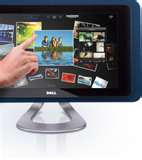
 Microsoft has introduced windows 7 multi touch technology with the latest Windows 7 that allows you to browse online newspapers, flick through photo albums, and shuffle files and folders by using just your fingers on the desktop. It allows you to zoom by placing two fingers on the screen of a multi touch-compatible PC and spreading them apart. To right-click a file you need to touch it with one finger and tap the screen with a second.
However, Windows Touch feature in Windows 7 is available only in the Home Premium, Professional, and Ultimate editions. Apart from that, the start menu and the taskbar in the new Windows 7 sport larger, fingertip-friendly icons. Not only that, all your favorite Windows 7 programs are also touch-ready.
Interestingly, you can even finger paint in Paint featured in the Windows 7. However, touch technology was also present in Windows Vista but the technological advancement of the feature was not as good and advanced as it is in Windows 7.
Windows 7 is also introduces handwriting recognition technology, which is the ability of a computer to receive and interpret intelligible handwritten input from various sources. Windows Media Center has also been touch optimized. In order to make efficient use of the Windows 7, Microsoft has devised this technology that enables you to browse websites that are compact and not easy to go through with a mouse. Buttons provided in Windows 7 are slightly wider to accommodate being pressed with a finger in touch-enabled displays including touch screens, tablet PCs etc.
Once you pair Windows 7 with a touch screen PC, it will become very easy to browse online newspaper, flick through photo album, and shuffle files and folder using nothing. For the very first time multi-touch technology has been fully embraced by Windows 7. Every task you want to do will become very simple. If you want to right click, just touch the multi-touch-compatible PC with one finger and tap the screen with another.
Microsoft has provided with optimized touch interface in Windows 7 with touch screen PC. Windows touch is only available in the three editions of Windows 7: Home Premium, Professional, and Ultimate. As you find in iPhones, multi-touch features are bundled in Microsoft Windows 7 with Tablet PC. Touch features gives the freedom of direct interaction. You can work on your computer with simpler notifications. Learn what is going on around you with Windows 7 in just few minutes. It offers you with more control and keeps you at the center of media world. You can have a quick look at videos and update yourself with Windows 7, Internet Explorer, and Windows Live.
After windows 7 installation windows 7 offers the user with touch gestures which includes the basic of tap and drag, as well as scroll, right click, back, forward, zoom, and rotate. High DPI support has also been improved in Windows 7. The advantage of this feature is that the UI element appears closer and larger which make it easier for the user to access the small buttons with touch. Windows Management has also been improved. The onscreen keyboard, the taskbar buttons, thumbnails, and Aero Peek are designed to work with touch. The users can easily size up and position Windows with Aero snap.
Netbook PCs with Windows 7
Take a back up of your important data and information in any external storage medium like a USB falsh drive etc, even if it seems to be uncomfortable task for you. Generally the initial idea of various people is to install Windows 7 in place of the previous edition of the Windows operating system, if you are a Windows user. And on the existing hard disk drive thereby using the old Windows installation folder in case of reinstallation being done. So, as to fetch the old documents and contents. According to some reviews it seems that the installations goes fine. Never forget to take back up of your important data and information before installing the latest Windows 7, because it will be a point that totally depends on you, whether you want to keep your old data and contents.
Second thing that you should take care is to check your manufacturer's Website for the BIOS and other software updates. For example, Samsung has published on its website and showed about twenty two different updates for the N310 to make it ready for the new Windows 7. One of the BIOS update was difficult to install before the upgrade. The remaining twenty one were the updates of those softwares that were incompatible with the new Windows 7 and it had to be installed afterwards.
Third thing is to Boot off the Windows 7 install media. Because some people find it difficult to release the Windows 7 installer from the install DVD in normal XP installation, while upgrading from Windows XP to Windows 7. But booting off the hard drive, not directly from the DVD, sometimes the installer appeared to run without any interference, unless it got stuck uncompressing the Windows files. Next thing is that you should not install from an external DVD drive. Becasue BIOS update was not done.
Finally if you plan to use a USB stick then you should remove it at the reboot. Thus you can build a Windows 7 install USB key for installing it. Many ways are suggested for making a USB drive to install Windows 7 and it works fine.
Windows 7 generally demands you to first boot off of the install media and then reboot from your hard drive. But if the BIOS is set to boot from a USB flash drive first before your hard drive , which happens if you had to change the BIOS setting because of a incomplete installation, the system will keep booting from the USB stick, and the installation will never be completed. The best alternative to this solution is to extract the USB flash drive while the computer is rebooted. Then the Windows 7 installation will be completed from the hard drive.
Windows 7 upgrade route
Microsoft will be allowing both XP and Vista users the right to purchase upgrade editions of Windows 7 which run for considerably less money. For example, the Windows 7 Home Premium Upgrade is $120, but its full edition priced for $200. Similarly, Windows 7 Professional ($200/$300) and Ultimate ($220/$320) will be sold as Upgrade and Full editions.
Now, in terms of how you can complete a migration on a machine already running Windows, and in-place upgrade option will make the experience unlimited, all your programs, files and settings will remain untouched coming from specific editions of Vista. However, for another significant portion of users, installing from starting will be the only path present.
Microsoft has launched a chart to help users showing what migration paths are open to them. Unfortunately, the chart is so confusing that it makes the whole process seem much more complicated than it is. In an attempt to make things simple upgrade path is suggested also. Windows XP and Windows Vista Starter users have to do a clean install.
There are many things worth important here. While you can't do a direct update from Windows Vista Home Basic or Home Premium to Windows 7 Professional, there is simple a workaround. You can run an in-place upgrade to Windows 7 Home Premium, and then use Windows Anytime Upgrade to move up to Professional for an additional $90. The total upgrade cost amounts to $210, which is $10 more than a direct migration but still better than buying a full Professional license at $300.
Windows XP users are not limited in the edition of Windows 7 they can upgrade through a clean install. Additionally, users of XP may have a path to Windows 7, if absolutely necessary, though it's less than recommended. It's been suggested that one could upgrade to Vista using a borrowed disc, skip activation altogether, and then run an in-place upgrade to Windows 7.
The estimated retail prices for upgrade packaged retail product of Windows 7 in the U.S. are:
Windows 7 Home Premium (Upgrade): $119.99
Windows 7 Professional (Upgrade): $199.99
Windows 7 Ultimate (Upgrade): $219.99
And the retail prices for full packaged retail product of Windows 7 in the U.S. are:
Windows 7 Home Premium (Full): $199.99
Windows 7 Professional (Full): $299.99
Windows 7 Ultimate (Full): $319.99
For Windows 7, we are lowering the price on our most popular retail product for customers, the Home Premium Upgrade, by approximately 10%. In the U.S., this means a customer buying Windows 7 Home Premium upgrade will pay only $119.99 instead of the $129.99 being charged today for its predecessor.
So, customers will be giving less and getting more with Windows 7. This includes many new features like HomeGroup, Device Stage, Aero Shake, Snap, Peek, Jump Lists and many more. These new features make your PC simple and much easier to use. This means that Windows 7 Home Premium full retail product is $40.00 less than Windows Vista Home Premium today.
Windows 7 logon screen
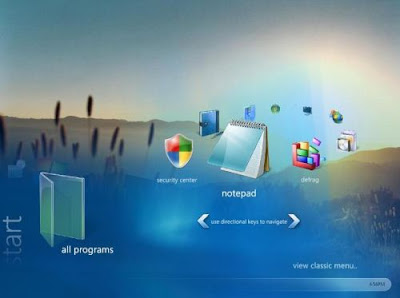
computer and it goes through its startup processes, the Windows 7 Welcome screen
appears. The appearance of the screen and the exact process to log on to Windows
depends on whether more than one user account has been created on your computer,
and whether your account is protected by a password.
If there is only one account on Windows 7 computer, and it is not protected by a password, the
Welcome screen displays your user account name and picture. Simply click the
picture to log on to Windows .
If there are multiple accounts, the Welcome screen will display the user account
names and pictures for all the active user account. Click your user account
picture and, if your account is password protected, enter your password to log
on to Windows 7.
If there is only one account, and it is password protected, the Welcome
screen displays your user account name and picture and a password box. You
need to enter your password and then click the Go button to log on to
Windows 7.
When you protect your Windows 7 user account by assigning a password to it, you have
the option of creating a password hint. Windows 7 displays the password hint if you
enter an incorrect password. If you didn’t save a password hint, or if you can’t remember
the password even with the help of the hint, you can reset your password—but only if
you have created a password reset disk. You can create this disk on either a USB flash
drive or a floppy disk, but not on a CD.
Links-
Pst Recovery | Pst Repair
Windows 7 Will succeed in Business
Windows 7 could be the most successful business operating system since Windows XP. It can be think that Windows XP, which has been admitting on for so long in so many businesses, was a bad thing. Firms stayed away from Vista in droves because of its bad reputation. They ended up saving themselves time, money, and headaches by executing an aging albeit finally stable operating system. If they had connected to Vista, it can be surprising that if the experience would have been so terrible that they might have asserted off Windows for good.
Their veneration to Windows XP works in Windows 7 favor in another way. Some companies seem ready to acknowledge that Windows XP’s time has passed. It’s good for older and lower-powered hardware, but these systems may not meet today’s computing requirements. Applying on to this hardware and the aging operating system for any longer might looks like some kind of lunatic devotion.
One of the reasons for this change in sensing is because there’s been a solid year of positive word of mouth. If you’ve heard Windows 7 story before, it rammed exactly once on me in 12 months and some only came upon one hardware incompatibility which Microsoft solved quickly. It’s a fairly common tale and it’s increasing confidence not just in the consumer market, but with all the IT managers who are trying to compute out what comes after Windows XP.
What’s truly shocking is that this is happening as Microsoft gives no simple upgrade path for Windows XP users. Ah, but then another vital factor comes into play. When a business holds on to hardware for so long it means that it contributes virtually no capital value to the business and is probably expendable and most of it is too old to hold an operating system upgrade. For example, 5-year-old laptops are likely on their second or third battery and have been through at least one hard drive swap. The screens are old-school and some of the motherboards have broked because employees insist on carrying them with one hand usually during only holding a corner.
As a result, IT managers who haven’t purchased new systems in years will make them a major part of their 2010 budget proposal. They’ll do a wholesale connection to Windows 7, without concerning about migration issues. Windows 7 is not a fundamental paradigm shift away from Vista or even all Windows that have come before it. Many of the familiar images are still there and a little digging always brings you back to the recognizable Windows dialogues like Device Manager, Services, etc. This is not a bad thing. IT managers appreciate the fellow. They also like operating systems that have been road-tested. Here’s where Vista may actually have been a plus. See, it is mostly referred to Vista as the 3-year beta test for Windows 7. IT managers are understand to this concept. Hardware drivers, in particular, were worked out for Windows 7 because Microsoft’s partners had 3 years to work them out for Vista.
Prickly Pair of Windows 7 faults
Microsoft has launched security advisories on two efforts that affect its newest operating system, Windows 7. One defect could let hackers carry out code remotely, the other could let them send a system into a crash spiral. The tapped code has been published on the Web. No fixes controlled in Microsoft’s latest Patch, which was issued less than a week ago, aimed at new Windows 7. Windows 7, which was publicly launched on Oct. 22, has been hit by at least two security defects.

One of these lets hackers run code remotely the other lets them activate an infinite loop remotely, causing a kernel crash. SMB, or Server Message Block, is a Microsoft file-sharing protocol used in Windows. It is mostly used with the NetBIOS transport protocol over TCP/IP. SMBv2 is a major rewrite of the SMB protocol, using different packet formats from SMBv1 and adding many improvements. Microsoft posted Security Advisory 977544 on Nov. 13, which stated the firm is investigating reports of a possible denial of service fault in the SMB protocol. The vulnerability affects Windows 7 executing on 32-bit and x64-based systems, and Windows Server 2008 R2 running on x64-based and Intel Itanium-based systems. The vulnerability may be used through Web transactions using any browser, the security advisory stated.
However, hackers cannot use the vulnerability to take control of or install malicious software on a user’s system, the advisory noted. Microsoft is growing a security update to address this vulnerability, although it rejected comment on how critical this defect is. This effort is more of a nuisance than anything else. It involves tricking an end user to click on a link to a server with a poisonous configuration, and it only locks up one machine. An assaulter who goes through the trouble of tricking users to click on a link will use an exploit that permits him to control the target machine after execution.
Someone also pointed to a National Vulnerability Database listing of a tap in the kernel that permits remote SMB servers cause a denial of service in computers executing Windows Server 2008 R2 and Windows 7. This attack comes through an SMBv1 or SMBv2 port containing a NetBIOS header with an incorrect length value, the listing stated. The kernel fault is under review for inclusion in the Common Vulnerabilities and Exposure (CVE) section of the National Vulnerability Database.
It was detected that both defects while working on other issues with Microsoft and other vendors, launched the information to make sure Microsoft admits security issues and patch the flaws as soon as possible and with transparency. This bug can be activated from outside a user’s local area network by hackers using Internet Explorer. The bug is so noob, it should have been spotted two years ago by the SDL if the SDL had ever existed.
SDL is the Security Development Lifecycle, it is part of Microsoft’s Trustworthy Computing Initiative. The SDL is useful, and gives more secure software to users, but in this case it failed, as Microsoft likely centred way too much on Internet Explorer and the Office suite, and critical services execute with kernel privileges such as SMB are not well covered by this process. Software development is a process, it’s impossible to completely avoid all exposures while software development. Microsoft’s SDL process is specified to lower the number of vulnerabilities in software as well as reduce the severity and affect of the ones that occur.
How to Burn a CD using Windows Media Player
1. With Windows 7, you can create your own CDs with your favorite tracks. Nowadays, you burn a CD, which means that you copy files to the CD. To create a list of tracks to burn, click the Burn tab in Media Player to display the pane on the right side of Media Player.
2
3. To show the tracks that you want to copy to a CD, click a playlist or music category.
4. Now, drag and drop a track, an album or a playlist into the burn list. To rearrange the tracks, drag them up and down in the burn list.
5. To delete a track from the burn list, right-click and select Remove from List. To start over from scratch, click Clear List.
6. The number of minutes in the selected tracks is shown in the burn list which is next to Disc 1. A CD can hold about 75 minutes of audio. A bar graph and numbers shows how many minutes are free of the total available memory.
If you select more audio files that will fit on one CD, Windows 7 Media Player automatically starts a list for a second disc below the first. You need to remove one or more tracks from the list if you want to burn only one disc.
7. Now click the Start Burn button on the Command Bar when you’re ready to create a CD.
8. The burn progress bar is shown at the top of the Burn list. Let the burn complete before you go on to other tasks. If the disc doesn’t automatically come out you need to push the button on the tray or right-click over the CD title and click Eject. Now close the Burn pane by clicking the Burn tab.
The disc will be unusable if you don’t let the burn complete but you can click the Cancel Burn button to stop mid-burn.
View Pictures in Media Player
Media Player displays more types of media than just music. To view pictures in Windows 7 Media Player, You need to click Pictures in the Navigation pane on the left.
Using Media Player, you can
Make new playlists of pictures with or without music.
Listen to music and look at pictures at the same time.
Copy or burn pictures to CD.
Sync pictures to a media player or an digital MP3 player that also has a screen for pictures, such as a Microsoft Zune.
Problem Steps Recorder In Windows 7
If you’ve ever worked as a technician and become extremely frustrated while trying to coax an end user into accurately describing the problem that has been encountered, you will definitely love a new tool in Microsoft Windows 7 called the Problem Steps Recorder. When started, this new feature will essentially record each and every step a user takes and document the entire operation in both screen captures and step-by-step details. When stopped, the Problem Steps Recorder will save the recorded information as a compiled HTML file and package it up in a ZIP file that the end user can then e-mail to the help desk.

The Problem Steps Recorder is an efficient tool in Windows 7 that can be used by the user to record the steps over phone by some expert. Hence, you don’t have to suffer calling again and again.
The beauty of this windows 7 feature is when any application starts misbehaving under Windows 7 then all your friends need do is click Start, type PSR and press Enter, then click Start Record. If they work through whatever they are doing then the PSR will record every click and keypress, take screen grabs, and accommodate everything up into a single zipped HTML file when they’re finished. After completing all this process it will be ready for emailing to you.
PSR (Problem Steps Recorder), can be start by a regular user or by an administrator.
1. User can record a series of actions performed on a computer.
2. Document those actions, in the order that they were performed using text and screen captures at the moment that the action was performed.
3. This documentation will include where the user clicked on each option on the screen.
4. The documentation won’t include anything that the end user typed for privacy reasons.
5. PSR will allow the user running it to create “Comments” throughout the process.
6. The PSR report will show the version of the operating system and even the URLs of any web pages that the user was accessing during the process.
In order to solve a network problem follow the given instructions:
● At First, start PSR by going to Start and type psr in the search box. Press Enter.
● When PSR comes up, press Start Record or use Alt-A.
● Now, perform your process. For instance, you can perform a number of steps.
● Do not forget to enter comments during your process to make your documentation even better. When you enter comments, you will be prompted to mark an area of the screen that will be added to the PSR report.
● When you are done with the process you want to document / record, press Stop Record and you will be prompted for the name to give your report.
● Now you are ready to view your report .
Note: In this article, we covered the new Windows 7 “Problem Steps Recorder”, how to use it, and how it can save you, as a Windows Administrator, so much time. Because the “PSR” is able to quickly and easily document any problem in Windows 7, step by step, in written form, it is a great way to document any series of steps on your computer or an end user’s computer.
Windows 7 Guide- Changes To Security in Windows 7

Microsoft launched Windows 7 with few enhancements such as HomeGroup, Aero, etc. However, there are several of new and enhanced security features as well. Here’s a rundown of key changes you must know about.
Everyone’s talking about the interface changes, the new taskbar, omission of the sidebar, a new look for Windows Explorer. Under the hood, there are few more changes, including latest and enhanced security features. Let’s look at some security features that have been changed or added in Windows 7.
Action Center- In Vista, security configurations can be access from the Security Center in Control Panel. In Windows 7, you won’t find a Security Center. That’s because it’s been replaced by a new Action Center. The Action Center offers security configurations as well as options for other administrative tasks, such as Backup, Troubleshooting And Diagnostics, and Windows Update.
Windows 7 UAC- User Account Control (UAC) was introduced with Vista, made to provide better protection from malware. It makes all user accounts run as standard users, even administrator accounts. If you need to perform something that requires administrative rights, it asks for permission. And asks. And asks. This in-your-face aspect of UAC has caused numerous complaints and has led some users to turn it off completely, thus exposing themselves to threats.
In Windows 7, UAC is still there, but now you can set up how vocal it will be. There are four settings you configure from the UAC settings in the Action Center. You can set UAC to:
• Always notify you when you install software or make any changes to Windows settings (as Vista does now).
• Notify you when programs make changes but not if you make changes to Windows settings (default Setting).
• Notify you only when programs make changes but turn off Secure Desktop, which dims the desktop while the UAC prompt is displayed. ( Preferred setting.)
• Never notify you. ( Not recommended.)
BitLocker- Windows 7 comes through and allows you to encrypt removable storage drives. And it’s easy to do. Just open the BitLocker applet in Control Panel, choose the drive you want to encrypt, and click Turn On BitLocker.
Windows Filtering Platform- Windows Filtering Platform (WFP) is a set of APIs introduced in Vista. In Windows 7, developers can use it to iinclude some parts of the Windows Firewall into their own programs. This will allow a third-party program to turn off certain parts of the Windows Firewall selectively if need be.
DNSSec- Windows 7 supports for DNSSec (Domain Name System Security), which is a group of extensions to the DNS platform that improved security. With DNSSec, a DNS zone can take advantage of digital signature technology so that you can validate the authenticity of data that’s received.


 Posts
Posts

